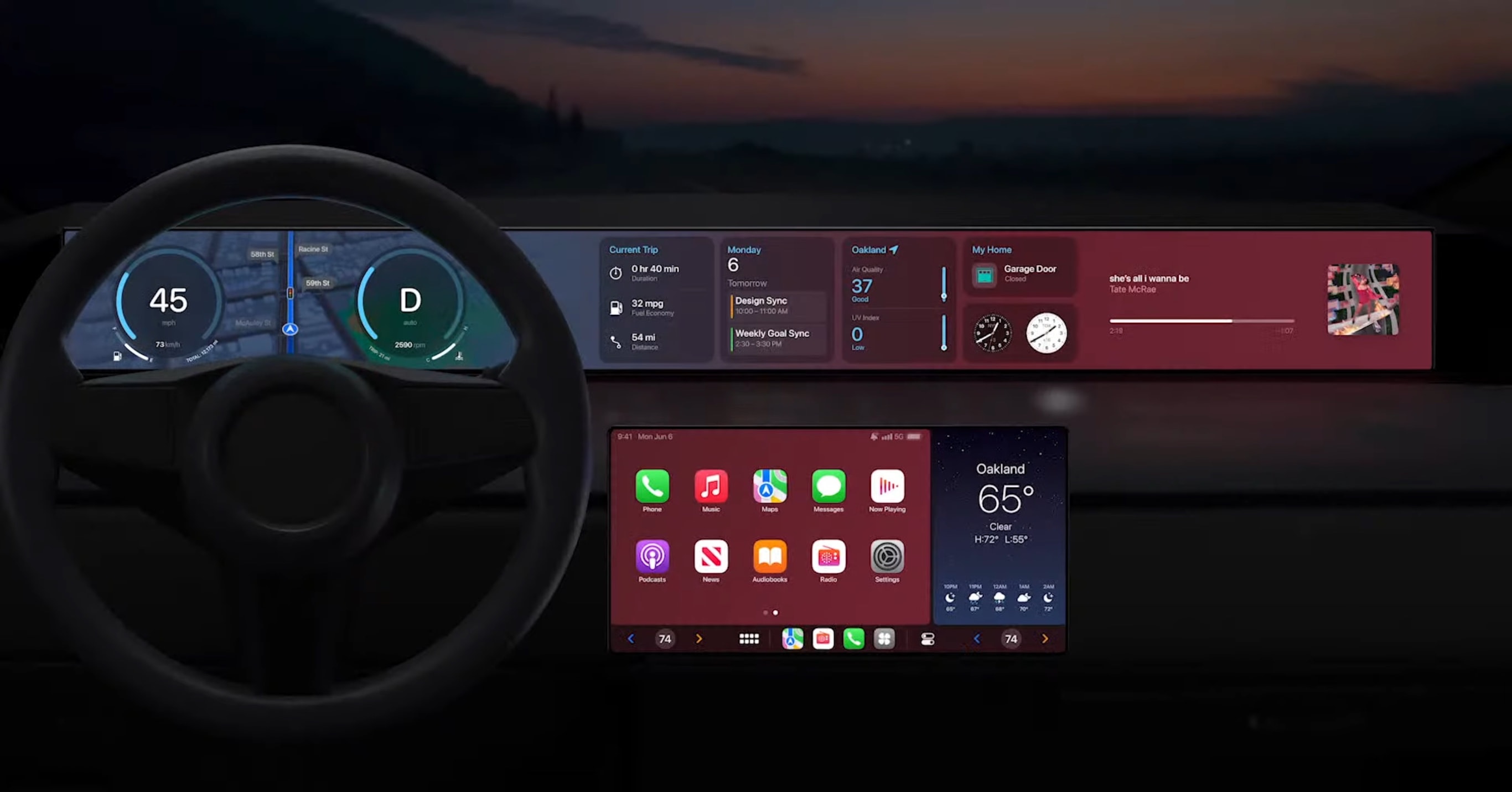
Apple’s CarPlay voice commands offer a safe way to handle dozens of tasks without lifting a finger or shifting your gaze away from the road. CarPlay’s Siri integration is one of the most underused safety tools in modern cars. However, it only works if you know what to say.
Get to know the best CarPlay voice commands for every driver with Cult of Mac’s handy roundup. Commit them to memory now so you’ll know how to employ them once you hit the road.
Best CarPlay voice commands for every driver
Glancing at your iPhone while driving takes your eyes off the road for an average of five seconds — enough to travel the length of a football field at highway speed. Apple’s CarPlay platform, which connects your iPhone to your car’s infotainment system or a third-party, lets you perform common tasks hands-free. (For more on third-party options, read our guide: The cheapest and easiest way to add wireless CarPlay to any vehicle.)
Whether you’re a new CarPlay user or a seasoned one who still reaches for the screen out of habit, these seven commands are the ones worth making second nature. And even if you, like me, don’t like talking to devices via Apple’s Siri voice assistant, you have to admit sometimes it’s advisable. Like when you’re behind the wheel.
Using Siri rather than tapping around on your CarPlay screen could help you steer clear of fender benders, moving violations, vehicular manslaughter charges — all sorts of benefits.
- See also: All the CarPlay upgrades in iOS 26
We ranked the CarPlay voice commands below by how much time, friction and distraction they’ll save you on a typical drive. That all adds up to safer driving. Also, these days you can just say “Siri” to initiate the assistant by voice (or you can use the old-school command, “Hey Siri”).
7. Get a weather update for your destination.
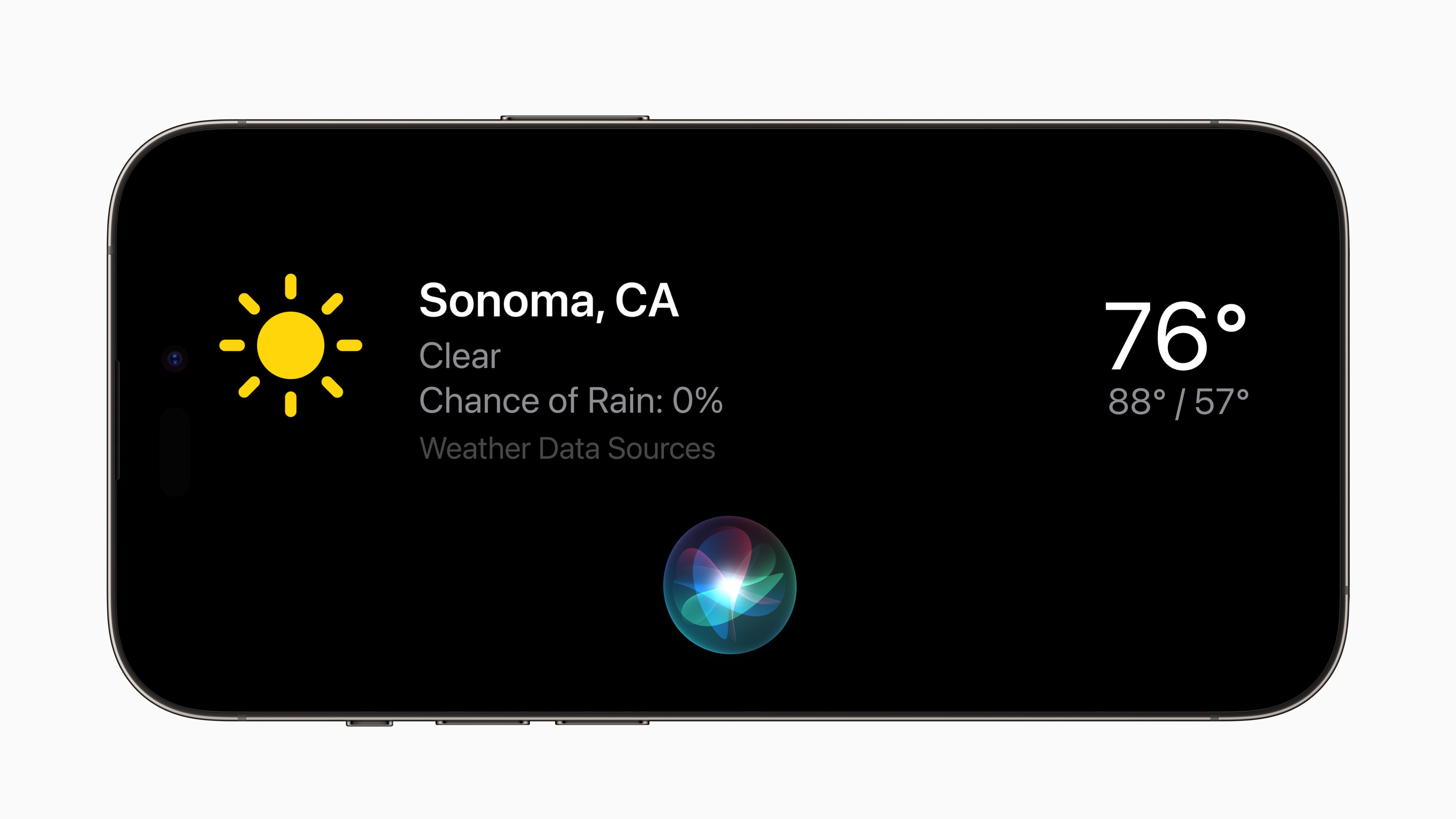
Photo: Apple
Checking the weather before a long drive usually means opening an app, typing or tapping a city name, and waiting for the screen to load — all things that should happen before you leave, but rarely do. With Siri, you can get a forecast for anywhere mid-drive without breaking your concentration. It works for your current location, your destination or any city by name, and reads the result aloud.
What to say: “Hey Siri, what’s the weather in Boston this afternoon?”
6. Add a stop to your current route

Photo: Apple
Adding a detour midjourney — a gas station, a coffee drive-through, a pharmacy — typically requires navigating through the Apple Maps or Waze interface, which means multiple screen taps while trying to stay in your lane. Siri can insert a waypoint into your active route in one step. It searches nearby, confirms the detour with you, and updates your navigation without you touching the screen.
What to say: “Hey Siri, add a gas station stop to my route.”
5. Set a reminder for when you arrive.
AI image: ChatGPT/Cult of Mac
Location-based reminders are one of the most useful features in iOS, but many folks don’t know you can set them from the car. If you need to remember to grab something from the trunk, call someone back once you’re parked, or pick up milk on the way home tonight, you can tell Siri to remind you when you arrive at your destination. It’ll fire the moment you pull in, no manual scheduling required.
What to say: “Hey Siri, remind me to call Dana when I get home.” (Include the task and the arrival location).
4. Send a text message by voice.
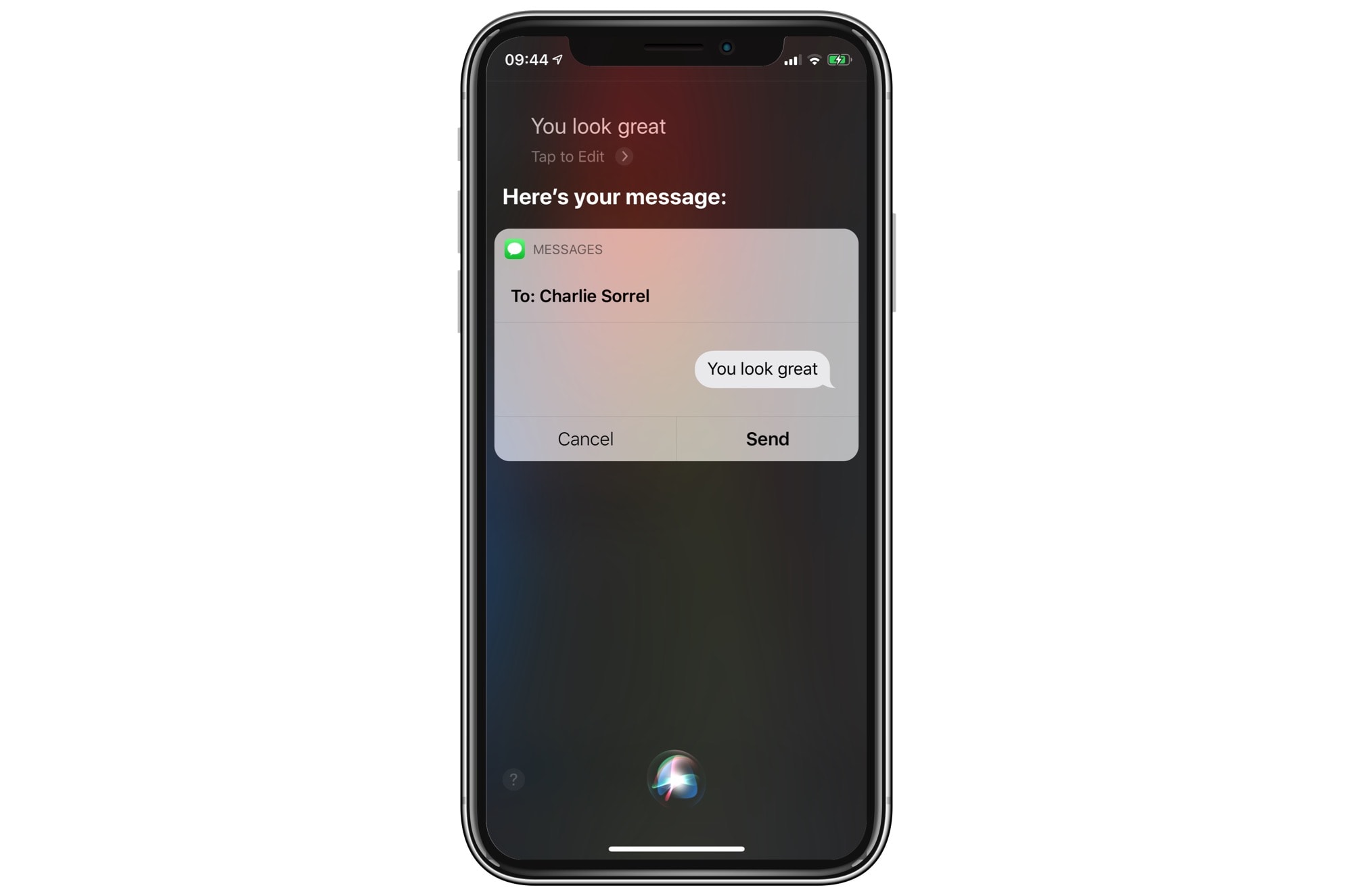
Photo: Cult of Mac
Replying to a text while driving is dangerous, but ignoring every message isn’t always realistic. Siri can read your incoming text messages aloud. And you can compose and send messages by dictating. Siri will read the message to you before sending, with zero screen time involved at any step (although you can change this in settings). You can also send messages through apps like WhatsApp. Just be sure to mention the app’s name in your request to Siri.
What to say: “Hey Siri, text Mom that I’m on my way and parking might take a few minutes.”
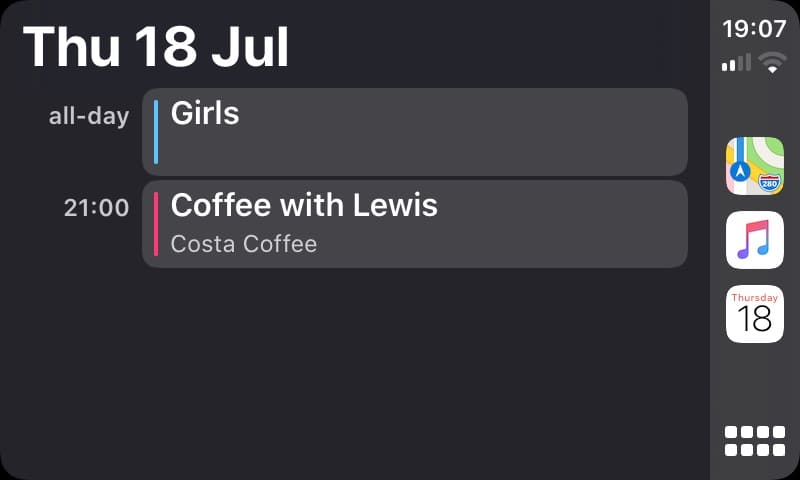
3. Navigate to an address from a message or calendar event.
Screenshot: Killian Bell/Cult of Mac
One of CarPlay’s most satisfying tricks is the seamless handoff between apps. If someone texted you an address or you have a calendar event with a location, you don’t need to copy and paste anything. Siri can pull the destination directly from your messages or calendar and launch turn-by-turn navigation in a single command. It reads contextual information rather than making you retype it.
What to say: “Hey Siri, navigate to the address in my next calendar event.”
2. Make a phone call hands-free.
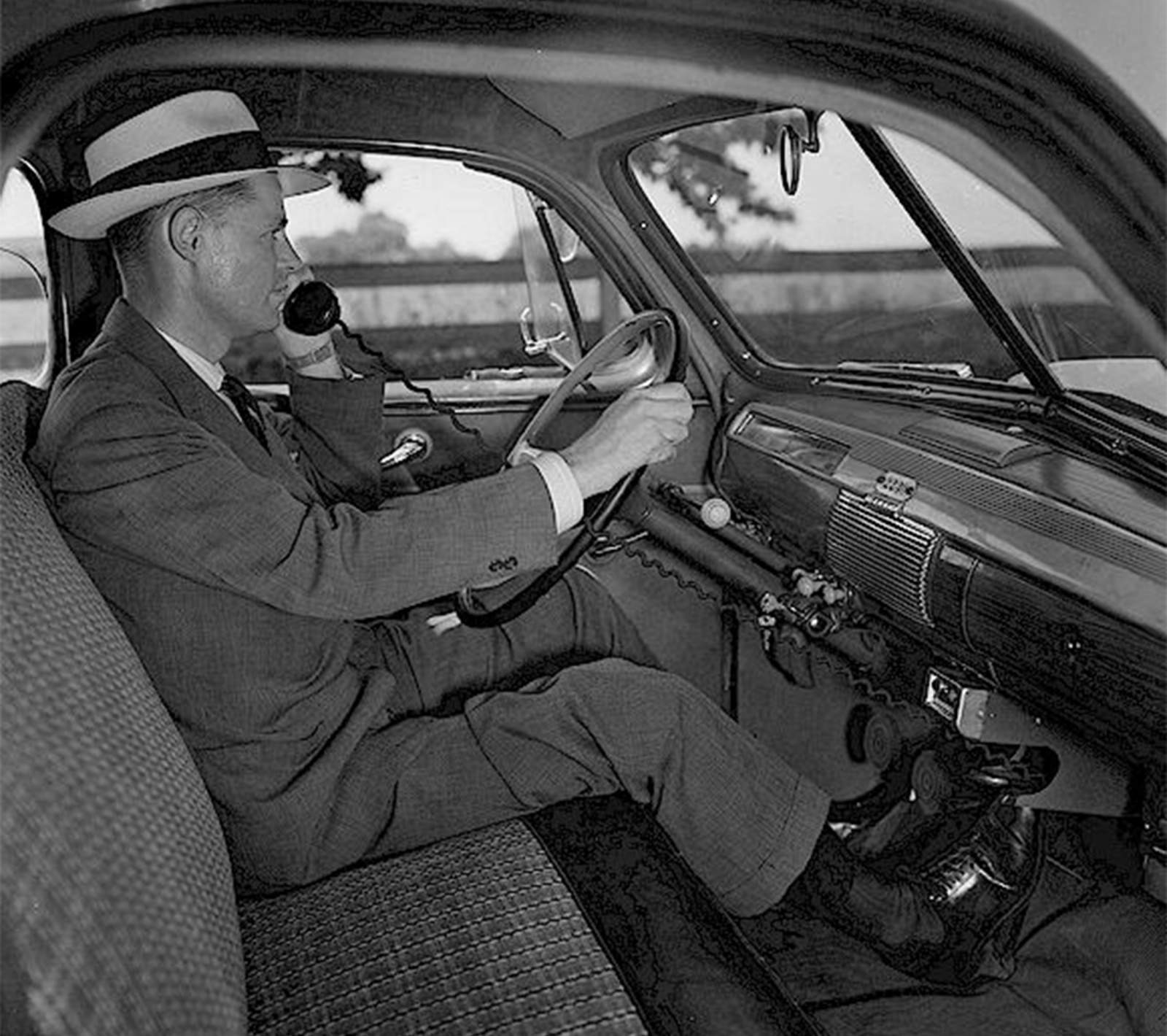
Photo courtesy Geoff Fors
It sounds obvious, but most people still unlock their iPhone to place a call rather than using Siri. Calling by name is fast. And Siri handles ambiguity gracefully, asking which number to use if a contact has multiple. You can also call businesses by name (Siri will search for them), redial the last number, or call back a missed call. Your steering wheel’s voice button triggers Siri on most cars even without saying “Hey Siri.”
What to say: “Hey Siri, call James on his mobile.”
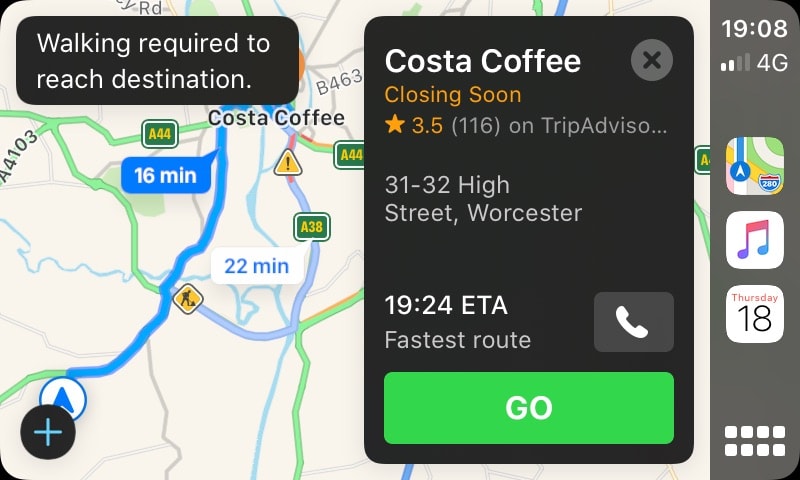
1. Start navigation to a destination.
Screenshot: Killian Bell/Cult of Mac
The single most impactful CarPlay voice command is the one you’ll use every drive: launching navigation. Tapping in an address before you leave is easy — but speaking your destination is faster, safer, and works even once you’re already moving. Siri understands natural language, handles partial addresses, and confirms before it starts routing. Add “avoid tolls” or “avoid highways” in the same command to skip an extra step if desired.
What to say: “Hey Siri, take me to 42 Oak Street, Springfield, avoiding tolls.”

David Snow, an expert on Apple hardware and software, writes on a variety of technological and cultural topics for Cult of Mac. They include Apple news, technology buying guides, and features about computer setups and Apple TV shows and movies.
With 30 years of experience covering technology and other subjects, he has written and edited for numerous print and online publications, including CMP Media, TechTV.com, CNET, Wired News, Red Herring magazine, Law.com, The National Law Journal and Law Technology News magazine. Among other roles, he served as executive editor of the Law.com network of websites and editorial director, technology, for ALM Media.
Snow graduated with a B.A. from Syracuse University with majors in magazine journalism and psychology. While there, he worked as a reporter for The Daily Orange newspaper and associate editor of Equal Time magazine.
Founder of the blog At the Waterline, he can be reached on X (formerly Twitter) via @atthewaterline and on Mastodon via @dsnow.

